
You’ve found the perfect WordPress theme, but it’s not quite perfect. Maybe the header needs tweaking, the colors don’t match your brand, or you want to add some custom functionality. Sound familiar?
Here’s the thing: most people dive straight into editing their theme files, only to discover their hard work vanishes the moment the theme updates. It’s frustrating, time-consuming, and completely avoidable.
Let me show you the smart way to customize your WordPress theme while keeping everything up-to-date and safe.
Why Direct Theme Editing is a Recipe for Disaster
Before we dive into solutions, let’s talk about why editing theme files directly is problematic. When you modify files in your active theme folder, those changes get wiped out every time the theme developer releases an update. It’s like building a sandcastle at high tide – you know it won’t last.
Beyond the update issue, direct editing can also break your site if something goes wrong, and it makes troubleshooting much harder down the line.

The Child Theme Approach: Your Safety Net
The most fundamental rule of WordPress theme customization is simple: always use a child theme.
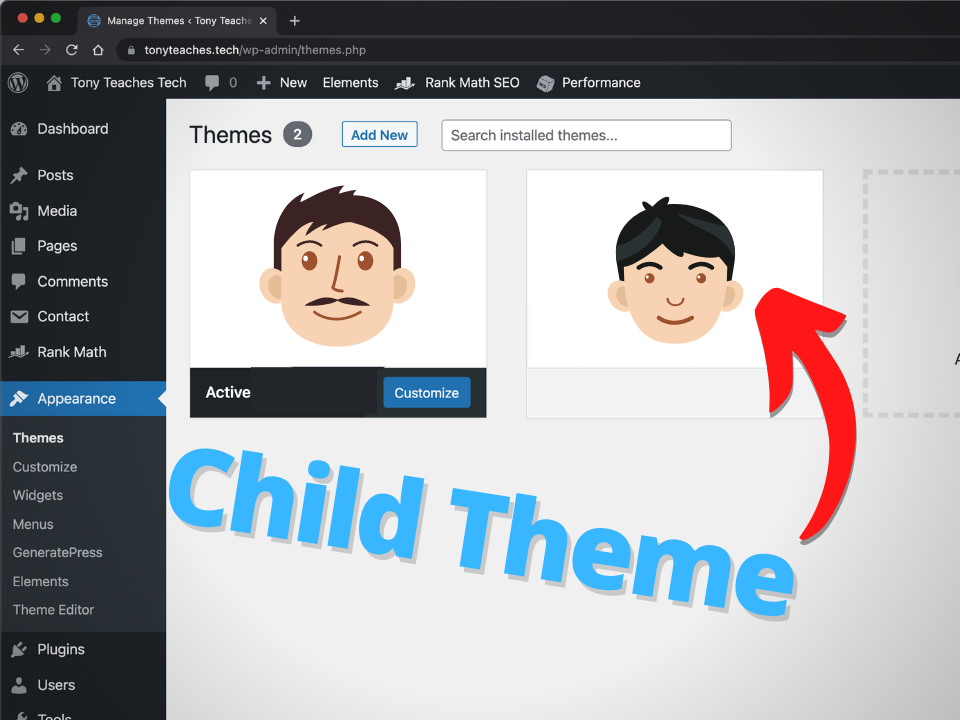
A child theme is essentially a mini-theme that inherits everything from its parent theme while allowing you to make changes safely. When the parent theme updates, your customizations remain intact.
Setting Up Your Child Theme
Creating a child theme is easier than you might think. You’ll need just two files to get started:
Step 1: Create the style.css file
Create a new folder in your /wp-content/themes/ directory. Name it something like your-theme-name-child. Inside this folder, create a style.css file with this header:
css
/*
Theme Name: Your Theme Name Child
Description: Child theme of Your Theme Name
Template: your-parent-theme-folder-name
Version: 1.0
*/
@import url(“../your-parent-theme-folder/style.css”);
Step 2: Create the functions.php file
In the same folder, create a functions.php file:
php
<?php
function child_theme_styles() {
wp_enqueue_style(‘parent-style’, get_template_directory_uri() . ‘/style.css’);
wp_enqueue_style(‘child-style’, get_stylesheet_directory_uri() . ‘/style.css’, array(‘parent-style’));
}
add_action(‘wp_enqueue_scripts’, ‘child_theme_styles’);
?>
Once these files are in place, activate your child theme from the WordPress admin dashboard, and you’re ready to customize safely.
WordPress Customizer: Your First Stop for Changes
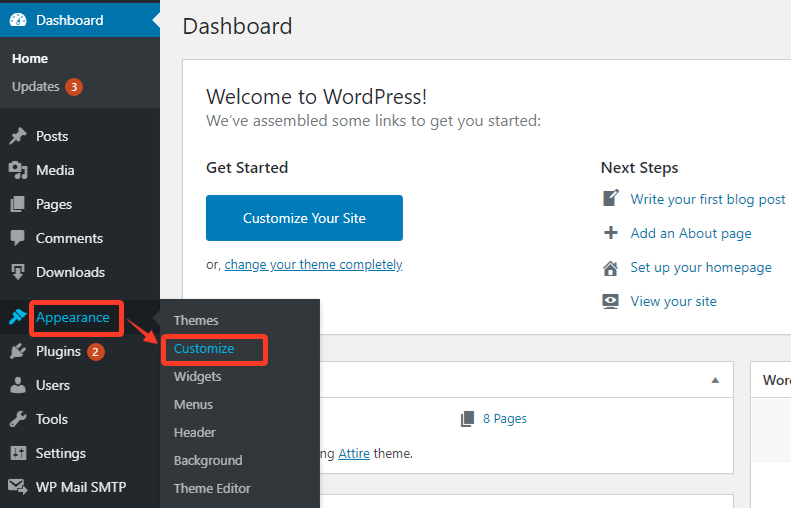
Before writing any code, explore what you can accomplish through the WordPress Customizer. Most modern themes offer extensive customization options right out of the box.
Access the Customizer by going to Appearance > Customize in your WordPress admin. Here you can typically modify:
- Site colors and typography
- Header and footer layouts
- Widget areas
- Homepage settings
- Menu configurations
The beauty of using the Customizer is that changes are stored in the database, not in theme files, so they survive theme updates automatically.
Smart CSS Customization Techniques
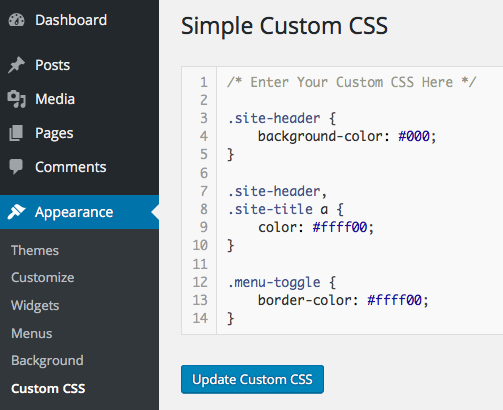
When the Customizer isn’t enough, CSS is your next tool. Here are some best practices for adding custom styles:
Use Specific Selectors
Instead of overriding broad CSS rules, use specific selectors that target exactly what you want to change. This prevents unintended side effects and makes your customizations more reliable.
Organize Your Custom CSS
Keep your custom CSS organized with comments:
css
/* Header Customizations */
.site-header {
background-color: #your-color;
}
/* Navigation Styling */
.main-navigation a {
font-weight: bold;
}
/* Footer Modifications */
.site-footer {
padding: 20px 0;
}
Test Responsiveness
Always check how your changes look on different screen sizes. Use your browser’s developer tools to preview mobile and tablet views.
Functional Customizations with PHP
For more advanced customizations, you’ll work with PHP in your child theme’s functions.php file. This is where you can:
- Add custom post types
- Modify existing functions
- Add new features
- Integrate third-party services
Key Principles for PHP Customizations
Always check if functions exist before defining them:
php
if (!function_exists(‘your_custom_function’)) {
function your_custom_function() {
// Your code here
}
}
Use hooks and filters instead of modifying core files:
php
// Add custom content to post endings
function add_custom_post_footer($content) {
if (is_single()) {
$custom_content = ‘<p>Thanks for reading!</p>’;
$content .= $custom_content;
}
return $content;
}
add_filter(‘the_content’, ‘add_custom_post_footer’);
All Things WordPress – Design & Optimization
We craft WordPress websites that combine stunning visuals with performance and usability—so your brand makes the right impression and drives measurable results.
- Custom WordPress design
- Conversion-focused layouts
- Complete website redesigns
Plugin-Based Customization Solutions
Sometimes the best approach is using plugins designed for customization:
CSS Plugins
Plugins like “Simple Custom CSS” or “Easy Theme and Plugin Upgrades” provide user-friendly interfaces for adding custom styles without touching theme files.
Page Builders
Tools like Elementor, Beaver Builder, or Gutenberg blocks can help you create custom layouts without coding.
Functionality Plugins
Instead of adding complex features to your theme, consider dedicated plugins. This keeps functionality separate from design and prevents losing features when switching themes.
Template File Customization
When you need to modify how your theme displays content, you can copy template files from the parent theme to your child theme and modify them.
The Template Hierarchy
WordPress follows a specific template hierarchy. Understanding this helps you know which file to customize:
- single.php for individual blog posts
- page.php for static pages
- archive.php for category and tag pages
- index.php as the fallback template
Best Practices for Template Customization
- Only copy the specific template files you need to modify
- Keep changes minimal and well-documented
- Test thoroughly after making changes
- Consider whether a hook or filter could achieve the same result
Version Control and Backup Strategies
Professional WordPress development always includes proper version control and backup procedures.
Use Git for Version Control
Initialize a Git repository in your child theme folder to track changes:
bash
git init
git add .
git commit -m “Initial child theme setup”
This allows you to roll back changes if something breaks and maintain a history of your customizations.
Regular Backups
Before making significant changes:
- Back up your database
- Copy your child theme folder
- Document what you’re changing and why
Testing and Quality Assurance
Never push customizations to a live site without proper testing.
Use a Staging Environment
Set up a staging version of your site where you can test changes safely. Many hosting providers offer one-click staging environments.
Test Checklist
Before going live with customizations:
- Check all pages load correctly
- Verify mobile responsiveness
- Test contact forms and other interactive elements
- Ensure loading speeds haven’t been negatively impacted
- Validate HTML and CSS
Common Pitfalls to Avoid
Learning from others’ mistakes can save you hours of frustration:
Don’t Modify Core WordPress Files
Never edit files in the /wp-admin/ or /wp-includes/ directories. These changes will be lost when WordPress updates.
Avoid Inline Styles
While it might seem easier to add styles directly in your HTML, this makes maintenance difficult and isn’t considered best practice.
Don’t Ignore Performance
Every customization should be evaluated for its performance impact. Heavy custom code can slow down your site significantly.
Keep Security in Mind
When adding custom PHP functions, always sanitize inputs and validate data to prevent security vulnerabilities.
Maintaining Your Customizations
Successful WordPress customization isn’t just about making changes – it’s about maintaining them over time.
Document Everything
Keep detailed notes about:
- What you changed and why
- Which files were modified
- Any dependencies your customizations have
- How to test that everything is working
Regular Maintenance Schedule
Set up a routine for:
- Testing your site after theme updates
- Reviewing and cleaning up unused customizations
- Updating any custom code for compatibility
- Backing up your customizations
Stay Updated on Best Practices
WordPress and web development best practices evolve constantly. Stay informed about new techniques and security considerations.
All Things WordPress – Design & Optimization
We craft WordPress websites that combine stunning visuals with performance and usability—so your brand makes the right impression and drives measurable results.
- Custom WordPress design
- Conversion-focused layouts
- Complete website redesigns
When to Consider Professional Help
While many customizations are achievable with some technical knowledge, certain situations call for professional expertise:
- Complex e-commerce integrations
- Custom plugin development
- Performance optimization
- Security implementations
- Multi-site network customizations
Professional developers bring experience with edge cases, security considerations, and performance optimization that can save you time and prevent costly mistakes.
Conclusion
WordPress theme customization doesn’t have to be a source of stress and lost work. By following the smart approaches outlined in this guide – using child themes, leveraging the Customizer, organizing your code properly, and maintaining good development practices – you can create a truly custom WordPress site that survives updates and serves your needs for years to come.
The key is patience and proper planning. Take time to understand what you’re trying to achieve, choose the right tool for each task, and always prioritize the long-term maintainability of your customizations.
Remember, every professional WordPress developer started with their first customization. Don’t be afraid to experiment, but always do so safely with proper backups and testing procedures in place.
If you find yourself needing help with complex WordPress customizations or want to ensure your project is handled professionally from the start, our WordPress design services team has the expertise to bring your vision to life while maintaining all the best practices discussed in this guide. We specialize in creating custom, update-safe solutions that grow with your business needs.